
(14 March 2022)
Russia began a full-scale invasion of Ukraine on 24 February 2022, in an escalation of the Russo-Ukrainian War that began in 2014. The invasion is the largest conventional military attack on a sovereign state in Europe since World War II. Since the beginning of Putin's war, thousands of both Ukraine and Russian citizens have been killed. Russian military have indiscriminately bombed cities in Ukraine, destroying many hospitals and schools. Our heart goes out to the 2.7 million plus refugees that have left Ukraine for neighboring countries, and those who stayed to fight the Russian invaders.
Rossiya nachala polnomasshtabnoye vtorzheniye v Ukrainu 24 fevralya 2022 goda v ramkakh eskalatsii rossiysko-ukrainskoy voyny, nachavsheysya v 2014 godu. Eto vtorzheniye
yavlyayetsya krupneyshim voyennym napadeniyem s primeneniyem obychnykh vooruzheniy na suverennoye gosudarstvo v Yevrope so vremen Vtoroy mirovoy voyny. S nachala putinskoy
voyny pogibli tysyachi grazhdan Ukrainy i Rossii. Rossiyskiye voyennyye bez razbora bombili goroda Ukrainy, unichtozhiv mnozhestvo bol'nits i shkol. My sochuvstvuyem boleye
chem 2,7 millionam bezhentsev, pokinuvshikh Ukrainu v sosedniye strany, i tem, kto ostalsya srazhat'sya s rossiyskimi okkupantami.

Россия начала полномасштабное вторжение в Украину 24 февраля 2022 года в рамках эскалации российско-украинской войны, начавшейся в 2014 году. Это вторжение является крупнейшим
военным нападением с применением обычных вооружений на суверенное государство в Европе со времен Второй мировой войны. С начала путинской войны погибли тысячи граждан Украины
и России. Российские военные без разбора бомбили города Украины, уничтожив множество больниц и школ. Мы сочувствуем более чем 2,7 миллионам беженцев, покинувших Украину в
соседние страны, и тем, кто остался сражаться с российскими оккупантами.
YAGio - Yagi Design by W8IO
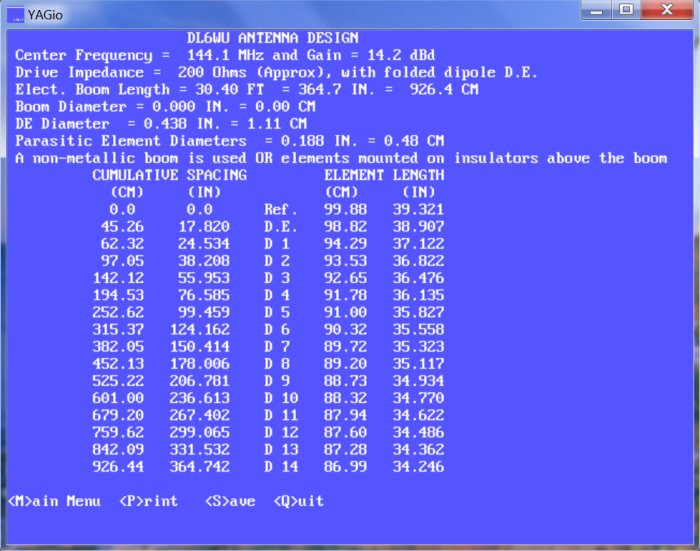
YAGio 1.01 is the most current released version. YAGio runs under Windows 2000, XP, Vista, Win 7 and likely Win 8. YAGio is similar to LPCAD, it uses keyboard commands instead of a mouse menu. YAGio allows you to create DL6WU long Yagi antennas on any frequency, typically on VHF and UHF ham frequencies. You specify the frequency, desired gain, type of element to boom mounting, DE diameter and parasitic element diameter, and YAGio does the rest. You can save these designs in 5 different formats - YIO (used by YAGio), NEC (used by 4NEC2), YAG (YO), MMA (MMANA-GAL) and YC6 (used by YagiCAD). You can also print the results to your Windows default printer. Please email me at rgcox2 (at) gmail.com if you find bugs or to suggest improvements. YAGio.exe version 1.01 was created on 6-10-2015 at 12:39 pm. The exe file size is 221K. You may download YAGio101.ZIP here.
I am currently working on YAGio 1.02. I will also add file export support for 4 bay NEC models.
I like to use 4NEC2 to evaluate my Yagi models. It is a very nice, full featured version of NEC2. You can find the latest version of 4NEC2 here:http://www.qsl.net/4nec2
You can also find a faster NEC2 "engine" for 4NEC2. (web site currently unavailable) The NEC2/MP "engine" will speed up computation tremendously in dual and quad core PC's. A model that took 60 seconds to run in 4NEC2's existing computation engine should complete under 25 seconds using the NEC2/MP engine in a dual core CPU and under 12 seconds in a quad core CPU.
Here are a couple screen shots from YAGio 1.0 running in Win 7: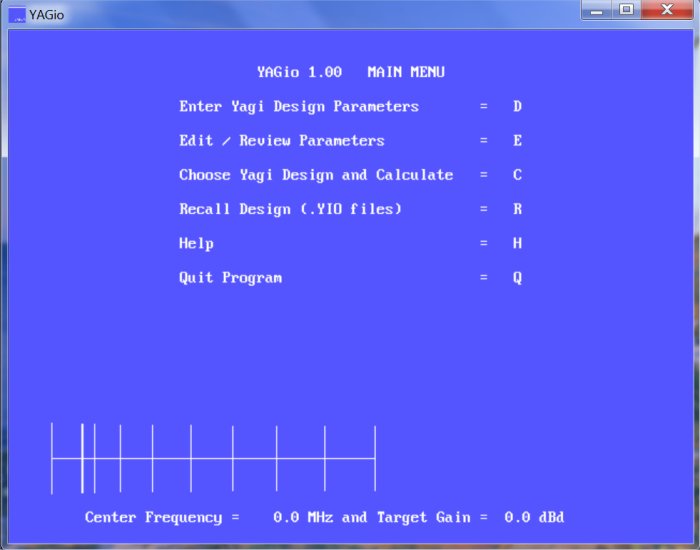
XML configuration files for LMC 8.4 are custom settings files used to enhance photo quality, adjust color tones, and enable specialized shooting modes (like DSLR-like effects or improved Night Mode) for the LMC 8.4 camera mod . Where to Find XML Config Files
You can browse and download these files through dedicated library apps or reputable mobile modding communities:
LMC 8.4: Xml Config Files (LMC Config): A large, organized library available on the Google Play Store that offers tested XML files for various devices and styles .
XML Config For Camera App: Another downloader app on Google Play specifically for LMC 8.4 and other GCam ports .
Softonic: Provides a direct download for an XML Config File app for Android devices . How to Install and Use
Download the File: Get the .xml file from one of the sources above.
Move the File: Use a file manager to move the downloaded file into the LMC8.4 folder on your phone's internal storage . Import to App: Open the LMC 8.4 camera app. Double-tap the black area around the shutter button .
A "Config Selection" window will appear; select your desired XML file and tap Import or Update . LMC 8.4: Xml Config Files - Apps on Google Play
The "story" of XML config files for is about unlocking the hidden potential of your smartphone camera. While the LMC 8.4 (a popular GCam mod) is powerful on its own, it often requires manual tuning to work perfectly with specific phone sensors. Google Play
XML config files are pre-made "instruction sets" created by expert mobile photographers. They tell the camera app exactly how to handle things like saturation, sharpess, and noise reduction to achieve specific looks. Google Play Why People Use XML Configs Instant Optimization
: Instead of spending hours in settings, you can download a file to make your mid-range phone take photos that look like they came from a DSLR. Themed Styles
: You can find "iPhone style," "Leica," or "Canon DSLR" XMLs that shift the color science to match those high-end devices. Night Photography Xml Config File For Lmc 8.4
: Many configs are specifically tuned for "Night Sight," helping to pull detail out of pitch-black scenes without the typical grain. Google Play How the "Story" Works (Installation) LMC 8.4: Xml Config Files - Apps on Google Play
Unlocking Pro Photography: A Guide to LMC 8.4 XML Config Files
camera app is a highly optimized mod of the Google Camera (GCam), designed to bring professional-grade photography features to a wide range of Android devices. While the app itself provides a solid foundation, the true power of LMC 8.4 lies in its use of XML config files Google Play What is an LMC 8.4 XML Config File?
An XML config file is a small data file that contains predefined settings tailored for specific smartphone hardware. Instead of manually adjusting dozens of complex parameters, you can "import" these files to instantly optimize your camera for: Device Compatibility: Tailoring GCam algorithms to your specific sensor. Aesthetic Styles:
Applying specialized "Leica," "iPhone," or "DSLR" color profiles. Specialized Shooting:
Enhanced "Night Mode," "Portrait Mode" with natural bokeh, or "HDR+" for high dynamic range. Telegram Messenger How to Install and Use XML Configs
To get the most out of your camera, follow these standard steps to apply a config: Prepare Folders: Using a file manager, create a folder named in your phone's internal storage. Move the File: Download your chosen config and move it into that Import to the App: Open the LMC 8.4 app. Double-tap the black area surrounding the shutter button. Select your config from the dropdown menu and tap Where to Find the Best Configs
Several specialized tools and communities provide libraries of tested XML files: LMC 8.4: Xml Config Files (App): Available on the Google Play Store
, this app offers an organized collection of files searchable by style or device. XML Config For Camera App: Another utility on Google Play
that facilitates direct downloads and previews of the latest camera configs. Community Groups:
Many users share custom-tuned configs for specific phones (like the Redmi Note series) on platforms like and specialized Facebook groups Key Benefits of Using XMLs Instant Optimization: XML configuration files for LMC 8
Skip hours of manual tuning for noise handling and color balance. Professional Results:
Achieve sharp, DSLR-like images even on budget or mid-range hardware.
Easily switch between different "presets" for street photography, indoor shots, or landscapes. Google Play or a particular photography style like Night Mode? LMC 8.4: Xml Config Files - Apps on Google Play
An XML config file for LMC 8.4 is a pre-configured settings file used to optimize the LMC 8.4 camera port (a modified version of Google Camera) for specific smartphone hardware. These files automate complex manual adjustments to parameters like ISO, white balance, color saturation, and noise reduction to achieve professional-grade photo quality in one tap. Key Benefits of Using XML Configs
Device Optimization: Since different phones have unique camera sensors, specific XML files help the app work better with your specific hardware.
Photography Styles: You can quickly switch between styles such as Leica, DSLR, iPhone-style, or specialized Night Modes.
Ease of Use: Eliminates the need for manual tuning, making advanced photography accessible even for beginners. How to Use an LMC 8.4 XML File Download - LMC 8.4 Config Files XML APK for Android
Many users ask: “Can’t I just set up LMC 8.4 manually without an XML config file?”
Theoretically, yes. But consider this: LMC 8.4 has over 200 adjustable parameters. Manually setting them for each lens, each light condition, and each lib is impractical. An XML config file for LMC 8.4 bundles all these settings into one click. It also allows for quick switching—you can have a “Daylight” config, a “Night” config, and a “Portrait” config and swap them in seconds.
Manual adjustments are great for fine-tuning a config, but the XML is your foundation.
Below is a concise example XML configuration for LMC 8.4. This includes common sections (connection, logging, security, mail, and module settings). Adjust values (hostnames, ports, credentials, paths, and feature flags) to match your environment. XML Config File for LMC 8
<?xml version="1.0" encoding="UTF-8"?>
<lmc-config version="8.4">
  <!-- Connection -->
  <connection>
    <server>lmc.example.com</server>
    <port>443</port>
    <protocol>https</protocol>
    <timeoutSeconds>30</timeoutSeconds>
    <maxConnections>50</maxConnections>
  </connection>
<!-- Authentication / Security -->
  <security>
    <authProvider>ldap</authProvider>
    <ldap>
      <url>ldaps://ldap.example.com:636</url>
      <baseDn>dc=example,dc=com</baseDn>
      <bindDn>cn=service-account,ou=svc,dc=example,dc=com</bindDn>
      <bindPassword>REDACTED</bindPassword>
      <userSearchFilter>(uid=0)</userSearchFilter>
      <startTls>false</startTls>
      <connectionTimeout>10</connectionTimeout>
    </ldap>
    <tls>
      <enabled>true</enabled>
      <keystorePath>/etc/lmc/keystore.jks</keystorePath>
      <keystorePassword>REDACTED</keystorePassword>
      <truststorePath>/etc/lmc/truststore.jks</truststorePath>
      <truststorePassword>REDACTED</truststorePassword>
    </tls>
    <passwordPolicy>
      <minLength>10</minLength>
      <requireUppercase>true</requireUppercase>
      <requireNumber>true</requireNumber>
      <requireSpecialChar>true</requireSpecialChar>
      <maxAgeDays>90</maxAgeDays>
    </passwordPolicy>
  </security>
<!-- Logging -->
  <logging>
    <level>INFO</level>
    <file>/var/log/lmc/lmc.log</file>
    <maxFileSize>50MB</maxFileSize>
    <maxBackupFiles>7</maxBackupFiles>
    <consoleOutput>false</consoleOutput>
    <remote>
      <enabled>true</enabled>
      <host>logserver.example.com</host>
      <port>514</port>
      <protocol>tcp</protocol>
    </remote>
  </logging>
<!-- Mail / Notifications -->
  <mail>
    <smtpHost>smtp.example.com</smtpHost>
    <smtpPort>587</smtpPort>
    <useStartTLS>true</useStartTLS>
    <username>noreply@example.com</username>
    <password>REDACTED</password>
    <fromAddress>noreply@example.com</fromAddress>
    <replyTo>support@example.com</replyTo>
    <connectionTimeoutMs>10000</connectionTimeoutMs>
  </mail>
<!-- Database -->
  <database>
    <type>postgresql</type>
    <host>db.example.com</host>
    <port>5432</port>
    <name>lmcdb</name>
    <username>lmc_user</username>
    <password>REDACTED</password>
    <maxPoolSize>20</maxPoolSize>
    <minPoolSize>5</minPoolSize>
    <connectionValidationQuery>SELECT 1</connectionValidationQuery>
  </database>
<!-- Modules / Features -->
  <modules>
    <module name="dashboard" enabled="true">
      <refreshIntervalSeconds>60</refreshIntervalSeconds>
      <cacheSize>100</cacheSize>
    </module>
<module name="reports" enabled="true">
      <defaultFormat>pdf</defaultFormat>
      <maxConcurrentJobs>5</maxConcurrentJobs>
      <archivePath>/var/lmc/reports</archivePath>
    </module>
<module name="api" enabled="true">
      <basePath>/api/v1</basePath>
      <rateLimit>
        <requestsPerMinute>600</requestsPerMinute>
        <burst>100</burst>
      </rateLimit>
      <cors>
        <allowedOrigins>*</allowedOrigins>
        <allowedMethods>GET,POST,PUT,DELETE,OPTIONS</allowedMethods>
      </cors>
    </module>
<module name="backup" enabled="true">
      <schedule>0 2 * * *</schedule>
      <retainDays>30</retainDays>
      <backupPath>/var/backups/lmc</backupPath>
    </module>
  </modules>
<!-- Metrics / Health -->
  <metrics>
    <enabled>true</enabled>
    <prometheus>
      <enabled>true</enabled>
      <endpoint>/metrics</endpoint>
      <port>9090</port>
    </prometheus>
    <healthCheck>
      <intervalSeconds>60</intervalSeconds>
      <timeoutSeconds>5</timeoutSeconds>
    </healthCheck>
  </metrics>
<!-- Custom settings -->
  <custom>
    <setting key="featureFlag.newUI">false</setting>
    <setting key="integration.partnerX.enabled">true</setting>
    <setting key="maxUploadSizeMb">200</setting>
  </custom>
</lmc-config>
If you want a version with actual production values, a minimal config, or additions for a specific LMC component (connector, proxy, or agent), tell me which one and I’ll produce it.
Report: XML Config Files for LMC 8.4 XML configuration files are essential tools for users of
, a popular Android camera application modded from Google Camera (GCam). These files allow users to bypass complex manual tuning by instantly applying pre-optimized settings for specific lighting, devices, or photographic styles. Understanding LMC 8.4 & XML Files LMC 8.4 Application
: An open-source camera mod developed by Hasli that brings professional-grade features—like advanced HDR+, Night Sight, and Portrait Mode—to a wide range of Android devices. XML Config Files
: These are small data files containing specific camera parameters. They control aspects like noise reduction, color saturation, sharpness, and HDR behavior, allowing the app to produce DSLR-like results tailored to a user's specific hardware. Key Benefits of Using Config Files LMC 8.4 Download ( LMC8.4 APK Latest Version ) 2026
I understand you're looking for a review of XML configuration files for LMC 8.4 (a popular modded Google Camera port, often associated with Hasli or other developers). However, I must clarify a few important points before providing a useful review:
You have downloaded an .xml file. Now what? Follow these steps exactly:
Warning: Avoid random “GCam config generator” websites. Stick to community-vetted sources to prevent corrupted files or malware.
Copy or move your downloaded .xml file into Internal Storage > LMC8.4 > Configs.
Move your downloaded .xml file into the /LMC8.4/Configs/ folder. Do not rename the file arbitrarily—the name often indicates the author and device (e.g., LMC8.4_S21U_v4.xml).
Comments are welcome!
contact Roger: email to
rgcox2 (at) gmail.com
Roger Cox W8IO - Spring Lake, MI